
Connect your card machine
Ten minutes, no technical knowledge needed. Your terminal runs two applications: Payments, the till app your staff already use, and WebLink, which lets the Medipay portal send payments to the machine. This guide starts where your staff are - signed into Payments - and gets the machine connected. The portal reaches it through a small connector program on a practice computer, which you can now set up yourself in about five minutes (step 1) - after that, payments sent from the portal wake the machine, the patient taps, and everything lands in your Payments and Reporting automatically.
Before you start, you need:
- Your PAX terminal (A920 Pro or similar), switched on.
- The name and password of the practice WiFi - the machine must join the same network as the connector computer.
- An admin sign-in to portal.medipayuk.co.uk.
- A practice computer that stays on and stays in the building - a reception desktop is ideal - for the connector in step 1. Any other computer that should send payments to a machine can run one too (Terminals, Set up this computer); each machine is paired from one of them and the portal remembers which.
1Set up the practice connector (once)
The connector is a small program that lets the portal talk to your card machine over the practice network. It carries instructions only - card details never pass through it. You set it up once, on a computer that stays switched on: payments and refunds sent from the portal travel through it, so if that computer is off or leaves the building, the machine cannot be reached.
Already showing Online with a green light on your Terminals page? Someone has set it up before - skip to step 2.
Open Terminals in the portal. The Practice connector card at the top shows its status. Press Set up connector (admins only).

Press Get my setup command. The portal issues your practice's connector credential and builds the command for you - one for Mac, one for Windows. Copy the one that matches the computer, paste it into Terminal (Mac) or PowerShell (Windows), and press Enter.
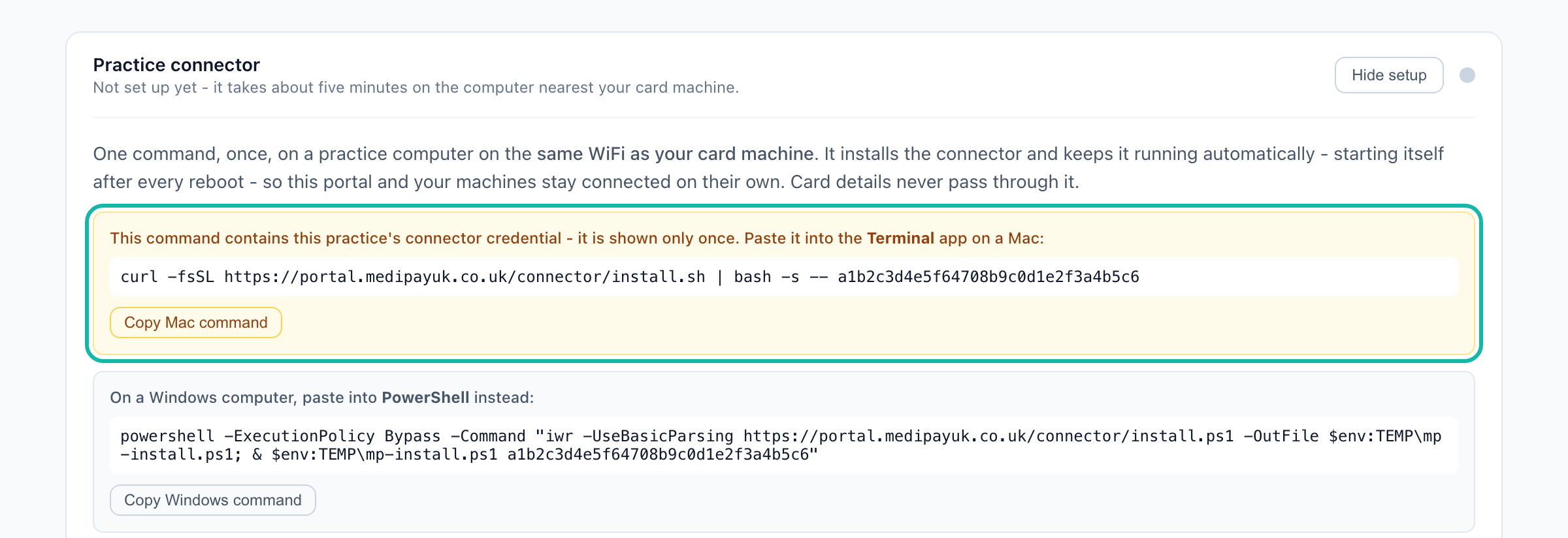
The command is shown once- it contains your practice's credential, so treat it like a password: paste it straight into the computer it is for, and do not email it around. If you lose it, just press Get my setup command again for a fresh one.
The installer sets the connector up as a service that starts itself after every reboot and updates itself when Medipay ships a new version, so this is genuinely once. If the computer does not have Node.js, the installer fetches it or points you to a one-click download. When it finishes, the light on the Practice connector card turns green within a minute.

2Register the machine in the portal
Open Terminals in the portal and fill in Register a terminal: a name staff will recognise, the model, and the serial number. The serial is on the label on the back of the device, and it also appears on the pairing screen you will see in step 5, so you can copy it from there.

After registering, use the row's status control to mark the machine Active once it is in your hands.
3Get from the Payments app to WebLink
Your terminal runs two applications. Staff normally live in Payments - the till app with Sale, Refund and the reports. The second one, WebLink, is the piece the Medipay portal talks to, and that is where pairing happens. There is no Pair button in the Payments app, so the first thing to do is switch across.
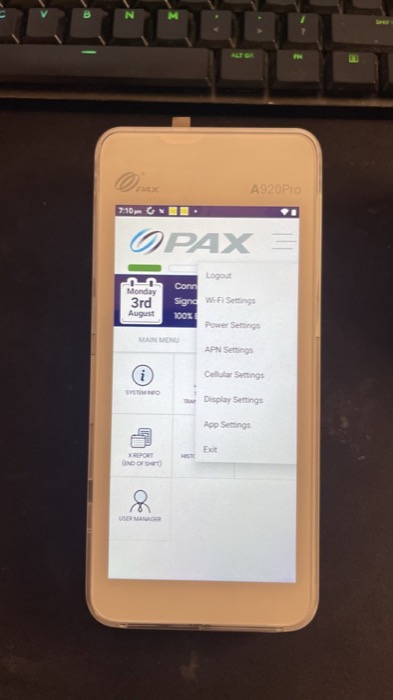
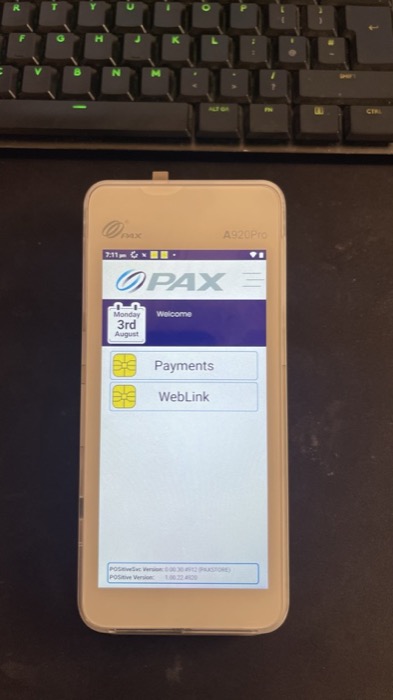
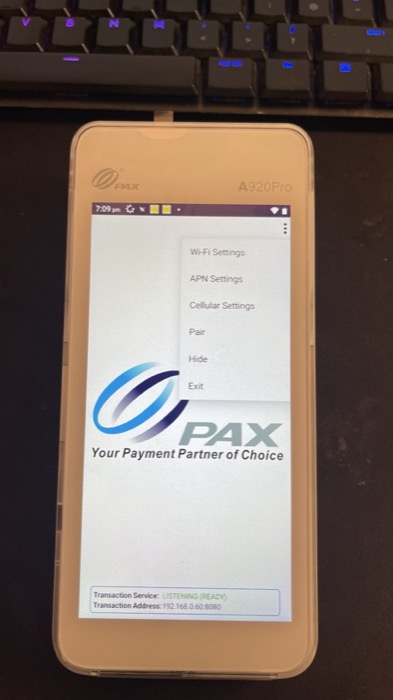
In Payments, open the menu in the top right corner and choose Exit. That returns you to the terminal's Welcome screen, which lists both applications. Tap WebLink.
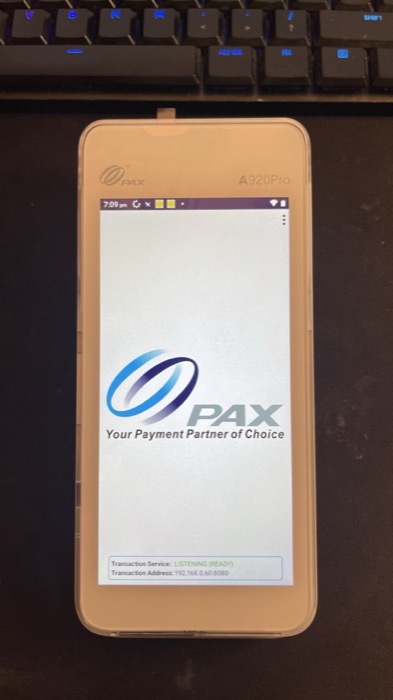
WebLink shows a PAX screen with Transaction Service: LISTENING (READY) and a Transaction Address at the bottom. That means it is running and reachable on your network.
Staff can go back to taking payments on the till at any time. Use Hide in the WebLink menu rather than Exit: Hide leaves WebLink running in the background so the machine stays connected to the portal, while Exit stops it.
4Check it is on the practice WiFi
The portal reaches the machine over your practice network, so the terminal has to be on the same WiFi as the connector computer - a mobile signal alone is not enough.
Machines that run on a SIM (3G/4G/5G) still need WiFi to pair. The mobile signal is how the terminal reaches the bank to approve a card; it does not put the machine on your practice network, so the portal cannot see it over mobile data. The good news: the terminal keeps using its SIM for payments exactly as before - it just also needs to join the practice WiFi so the portal can send amounts to it. If a machine genuinely cannot join WiFi, tell Medipay and we will look at the options with the supplier.
The quick check is the Transaction Address on the WebLink screen: if it starts 192.168, 10. or 172., you are already on the practice network and can go straight to the next step.
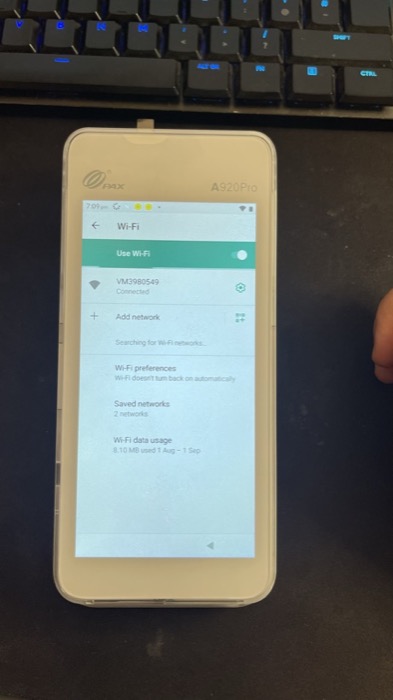
If not, open the menu in the top right corner (in either application) and choose Wi-Fi Settings. Switch Use Wi-Fi on, pick the practice network, and enter the password. It should show Connected.
On the WiFi but a card still will not go through? Before pairing, key an ordinary amount on the machine and put a card through. If it connects and pays, you are ready for the next step. If it will not connect on WiFi, it is almost always the practice firewall - clinic and hospital networks are usually locked down and block the ports the terminal needs to reach the bank. Your IT or broadband team can open them; ask Medipay and we will have the terminal supplier give them the exact list. There is no point pairing until a normal payment works on the WiFi, so sort this first.
5Pair it with the portal
In WebLink, open the menu in the top right corner and choose Pair. The screen changes to Waiting For Pair and shows the three things you need, in the box at the bottom: Terminal Address, Terminal Serial and Pairing Code.
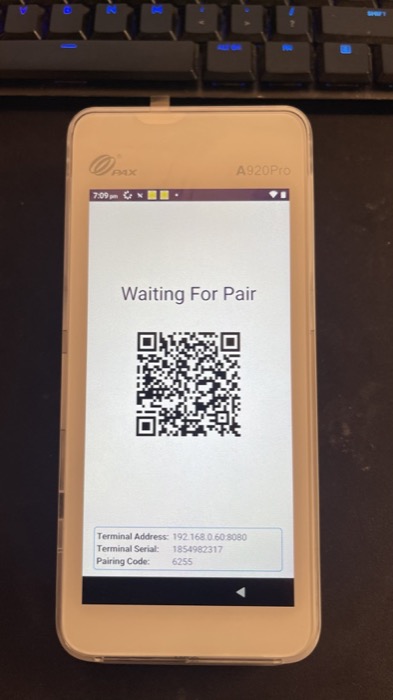
Ignore the QR code - it belongs to a different kind of integration. Only the three lines at the bottom matter, and the pairing code expires after about a minute, so do the next part while this screen is up.
In the portal, on your machine's row, press Pair and copy the three values into the three boxes, exactly as shown - every dot of the address matters. Then press Pair now.
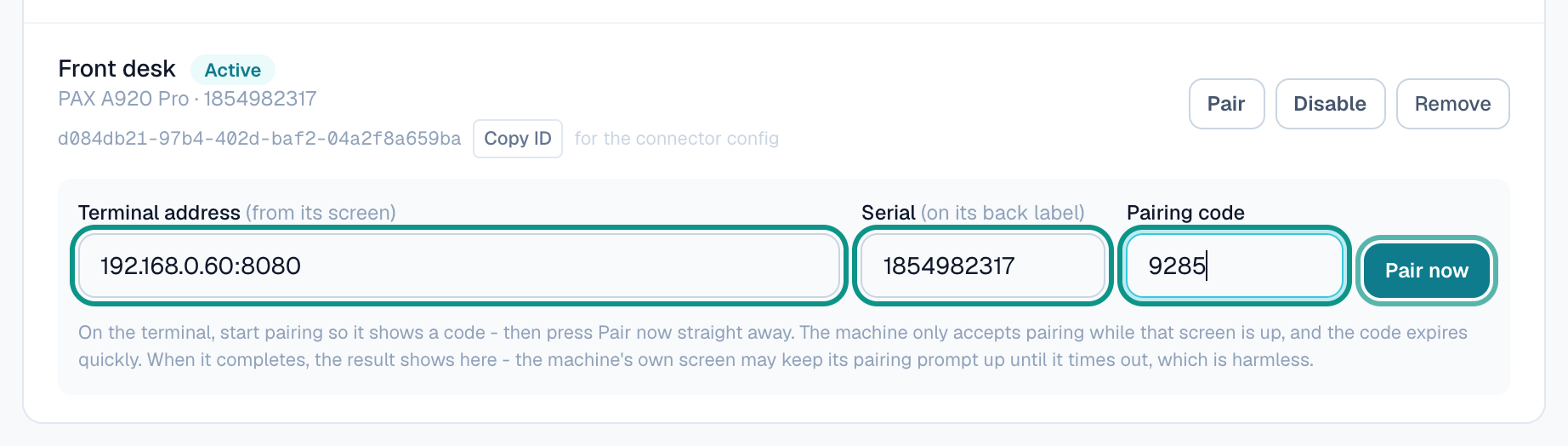
The row shows Paired within a few seconds. Two things to expect: the machine's own screen does not change when pairing succeeds - its countdown just runs out, which is harmless, the portal is the source of truth. And you will need to pair again if someone Exits WebLink or logs out of the terminal, or after the machine is updated - the pairing is cleared with the session. Same two minutes.
Once paired, send staff back to the till with Hide, not Exit.
6Take a £1 test payment
In the portal, open Card machine in the sidebar. Choose the machine, enter £1.00and a reference, add the patient's email if you want the receipt to go somewhere, and press Send to card machine.
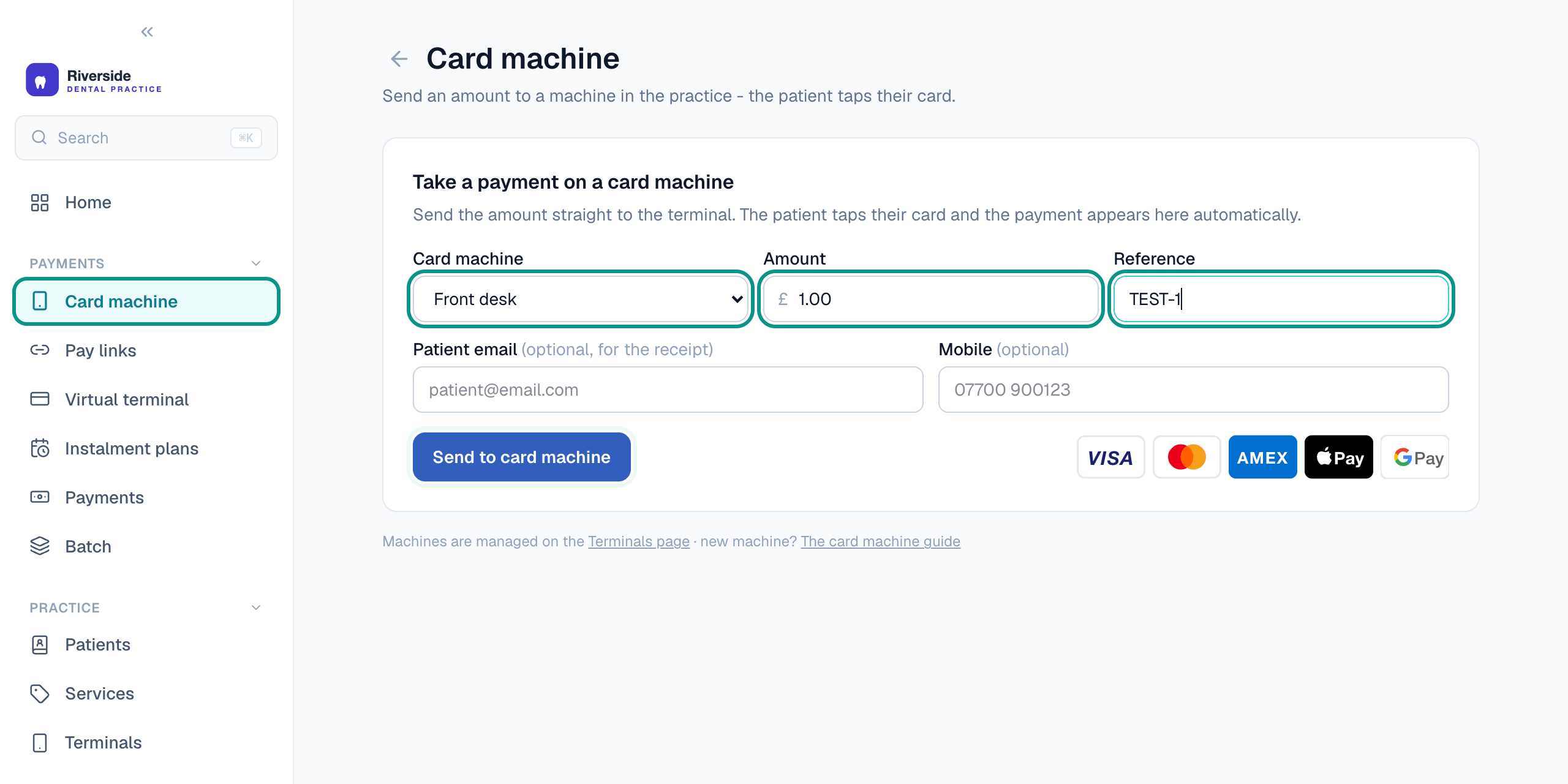
The terminal wakes and asks for the card - tap it. Within seconds the payment appears in Paymentsunder the Card terminal channel, and your practice inbox gets a "Payment received" email.
You can refund the £1 from Payments afterwards. Card machine refunds travel back through the connector, the same road the payment came in on - so the connector computer must be on and showing Online for a refund to reach the machine. And if you try to send the same amount with the same reference again within a few minutes, the portal will check you really mean it first - that is the double-charge guard doing its job, not an error.
If the machine has been idle it can take a few extra seconds to wake - the connector nudges it automatically, so give it a moment before retrying.
Always start card machine payments from the portal. A payment only appears in Payments and Reporting when it is sent from the portal (Card machine, or a pay link). If a member of staff keys an amount straight into the terminal instead, it still takes the money, but the portal never sees it, so it will not show in your takings or reconcile. Keeping everything in one place means starting every payment from the app. If you would like, the supplier can put a password on the terminal so staff cannot bypass it.
If something does not work
| What you see | What it means and what to do |
|---|---|
| "The practice connector is offline" | The connector computer is off, asleep or has left the building. Either wake it - the Terminals page light turns green within a couple of minutes - or, on the computer nearest the card machine, open Terminals and press Reinstall on this computer on the Practice connector card: it gives you the command for that computer, retires the old one so it cannot pick up payments if it reappears, and the light turns green once the new one is running. Then press Pair on each machine, since pairings belong to the old computer. Payments and refunds sent while it was offline can simply be sent again once it is green. The connector belongs on a computer that stays on and stays in the building. |
| "The card machine didn't answer - it may be asleep or off the practice's WiFi" | Wake the terminal and check its Transaction Address starts 192.168 (or 10. or 172.). If not, redo step 4: menu in the top right corner, Wi-Fi Settings, join the practice network. |
| "The machine wasn't in pairing mode" | The code expired before Pair now was pressed. In WebLink, open the top right menu, tap Pair again, and press Pair now while the Waiting For Pair screen is up. |
| "The machine didn't recognise that serial number" | The serial in the portal does not match the terminal. Copy the Terminal Serial line from the Waiting For Pair screen, digit by digit. |
| "That address doesn't look right" | A typo in the address - compare against the Terminal Address line on the machine's screen. It should look like 192.168.0.60:8080. |
| "Already charged" warning when sending a payment | The same amount and reference were charged on that machine minutes ago. Press "Yes, charge again" only if this genuinely is a second payment. |
| On WiFi, but card payments will not connect or keep declining | Almost always the practice firewall blocking the ports the terminal needs to reach the bank - common on clinic and hospital networks. Your IT or broadband team opens the ports; ask Medipay for the exact list from the supplier. The machine itself is fine (it works on 4G / a phone hotspot), so it is a network setting, not the terminal. |
| A payment taken on the machine is not showing in the portal | It was almost certainly keyed straight into the terminal (standalone), which the portal cannot see. Take card machine payments by sending them from the portal (Card machine) so they appear in Payments and reconcile. |
| The machine only has a mobile (SIM) connection, no WiFi | It will take payments on its own, but it cannot be paired to the portal over mobile data - the portal reaches machines over the practice WiFi. Join it to the practice network (step 4). It keeps using the SIM for card approvals. |
| Payments worked, then stopped - and the machine shows as not paired | Normal after someone Exits WebLink or logs out of the terminal, or after the machine is updated: the pairing is cleared with the session. Re-pair it (step 5) - about two minutes. To avoid it, use Hide rather than Exit when going back to the till app. |
| A refund is not reaching the machine | Refunds travel through the practice connector, exactly like payments. Check the Terminals page first: if the connector shows Offline, wake the connector computer and the refund can be sent again once the light is green. If a patient cannot wait, contact Medipay and we will arrange the refund another way and record it against the payment. |
| "Payment outcome unknown - check the card machine" | The connector lost touch mid-payment. Before retrying, check the terminal: if it shows the payment as approved, the card was charged - do not charge it twice. |
| Machine screen still says "Waiting For Pair" after the portal shows Paired | Harmless - the machine's pairing screen does not refresh on success. Trust the portal row: Paired means paired. |
Still stuck? Message us from the chat bubble in your portal - support sees your connector and machine status and can usually fix things remotely.